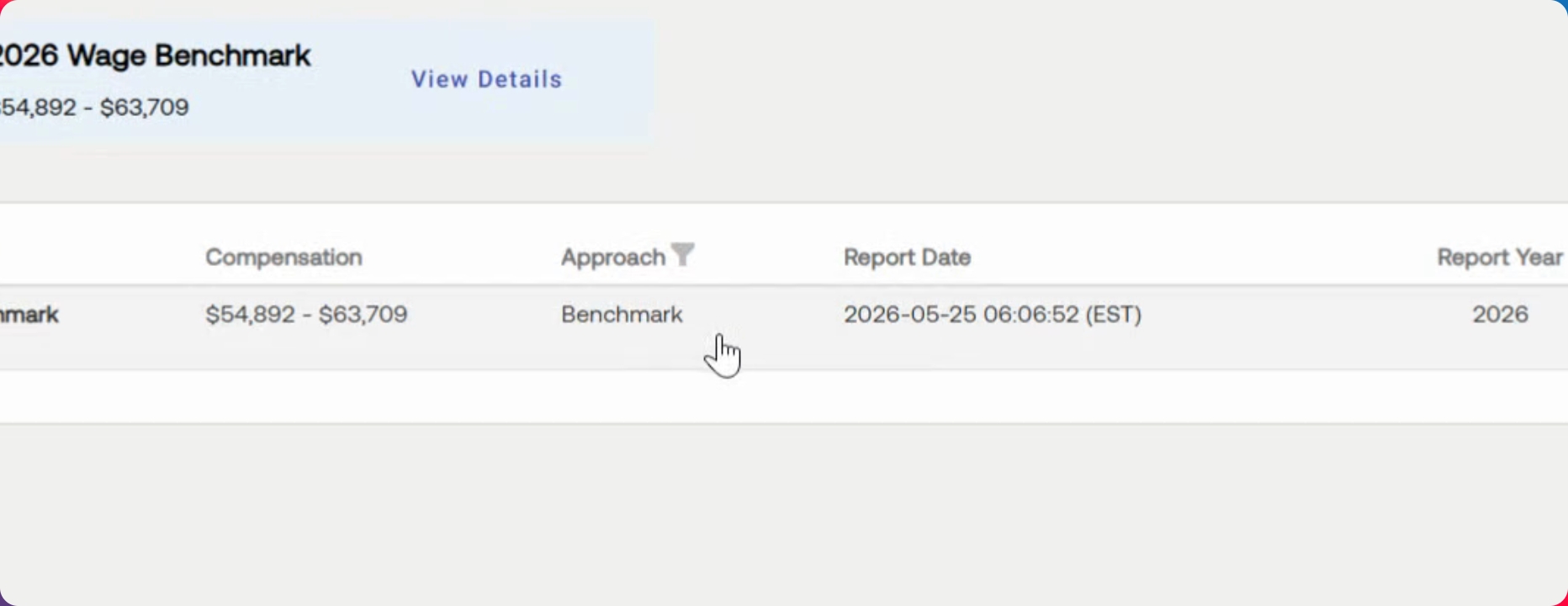

This guide covers two methods for running a benchmark for your client: one for new clients and one for existing clients. Let's look at the steps:
Step 1: Add a New Client
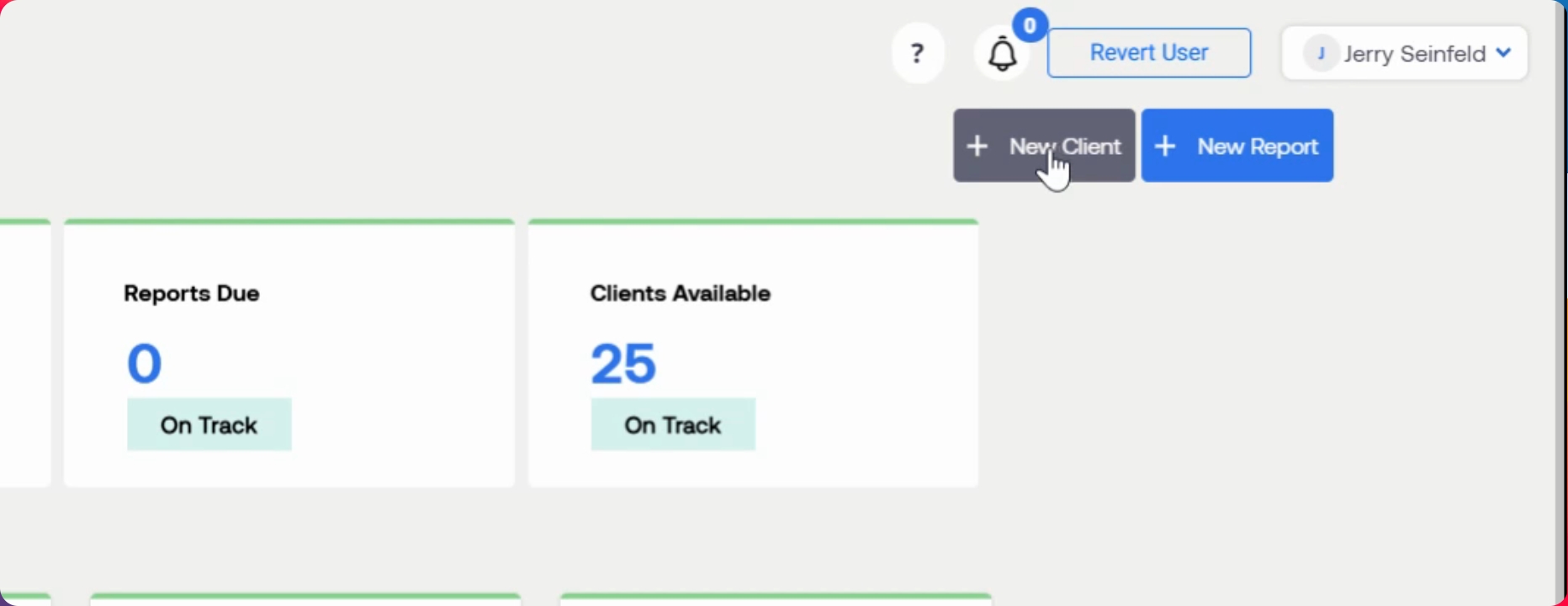
In the dashboard, click the New Client button in the top right corner. Fill out the required fields: Name, Company, Email, and NAICS code. Also enter the Zip Code and Number of Employees. Optional fields are not required.
Step 2: Save the New Client
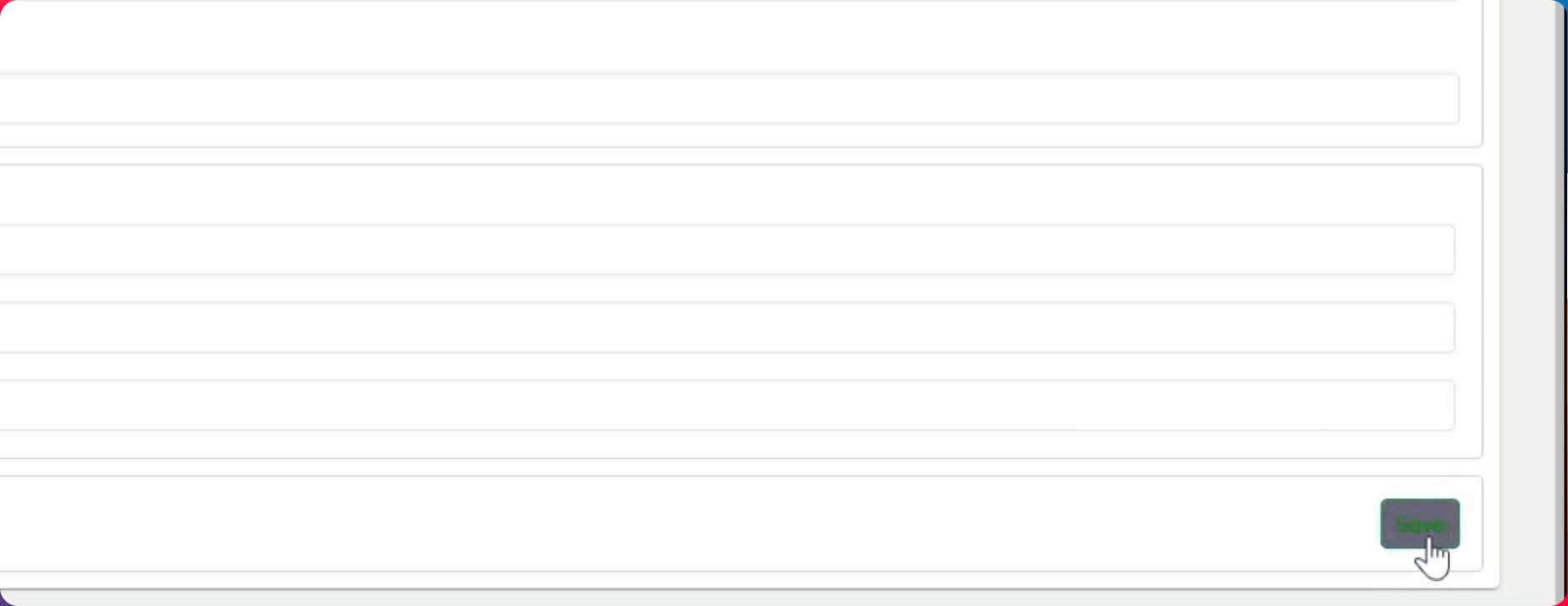
After entering all required information, click the Save button in the bottom right corner. A wage benchmark will be generated automatically.
Step 3: View and Run Full Report
Select the benchmark to view its details. You will see the benchmark range and a Run full report button. Click this button to generate a full reasonable compensation report for your client.
Step 4: Benchmark for Existing Client
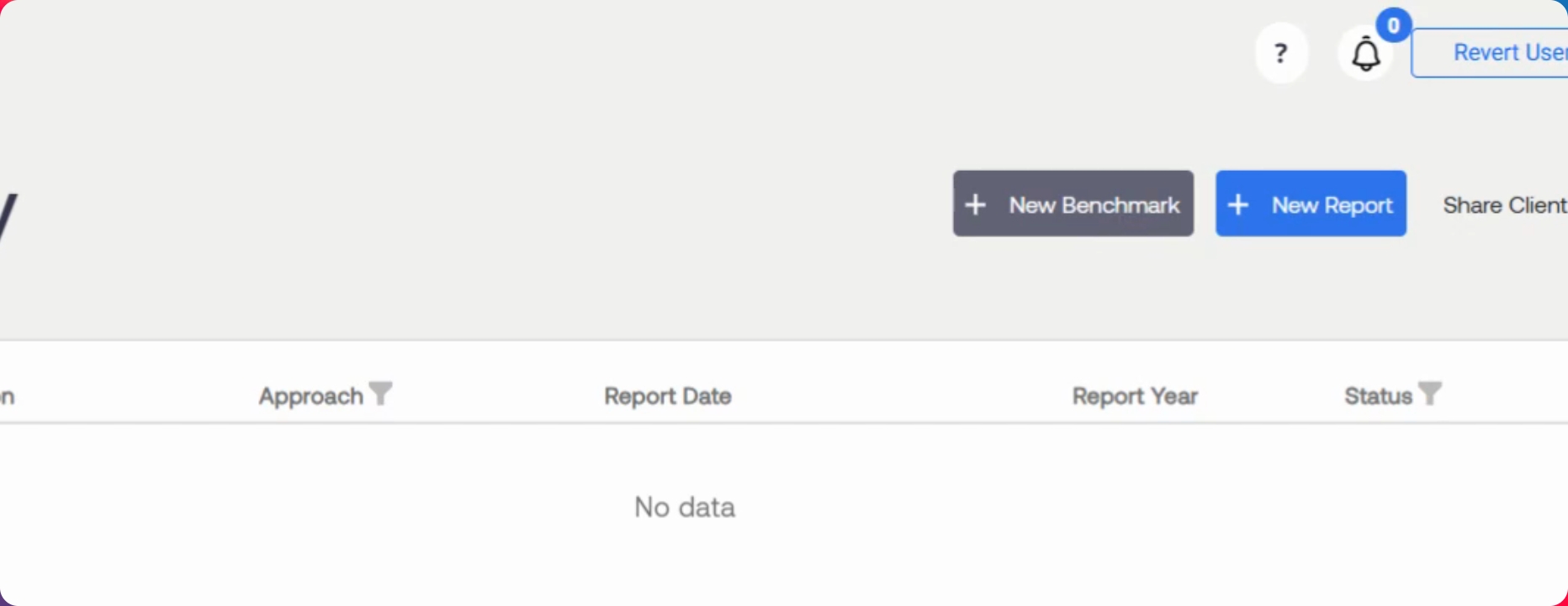
For a client that already exists but does not have a benchmark, click the New Benchmark button. This opens the report wizard. Select the client to check if all required information is present. If any information is missing, such as Zip Code or Number of Employees, click Edit client and fill in the necessary fields.
Step 5: Complete Benchmark and Report
Once the required information is entered, a benchmark will be generated. You can then select the benchmark, view the suggested range, and run a full reasonable compensation report as needed.
After running a benchmark, you are free to run a full report for your client at any time.